

Tired of that gorgeous iMac just sitting there collecting dust? Good news! You can use your iMac as a monitor in 2025 with the help of Luna, that too with a stunning 5K resolution. With the help of Luna Display, even your iPad or MacBook can be turned into an external screen.
It’s an incredibly flexible solution to extend your workspace, boost productivity, and give your older Apple devices a fresh purpose. This guide explains everything clearly, from choosing the right cables to optimising performance, so you can set it up without the guesswork. Let’s dive in to learn more!
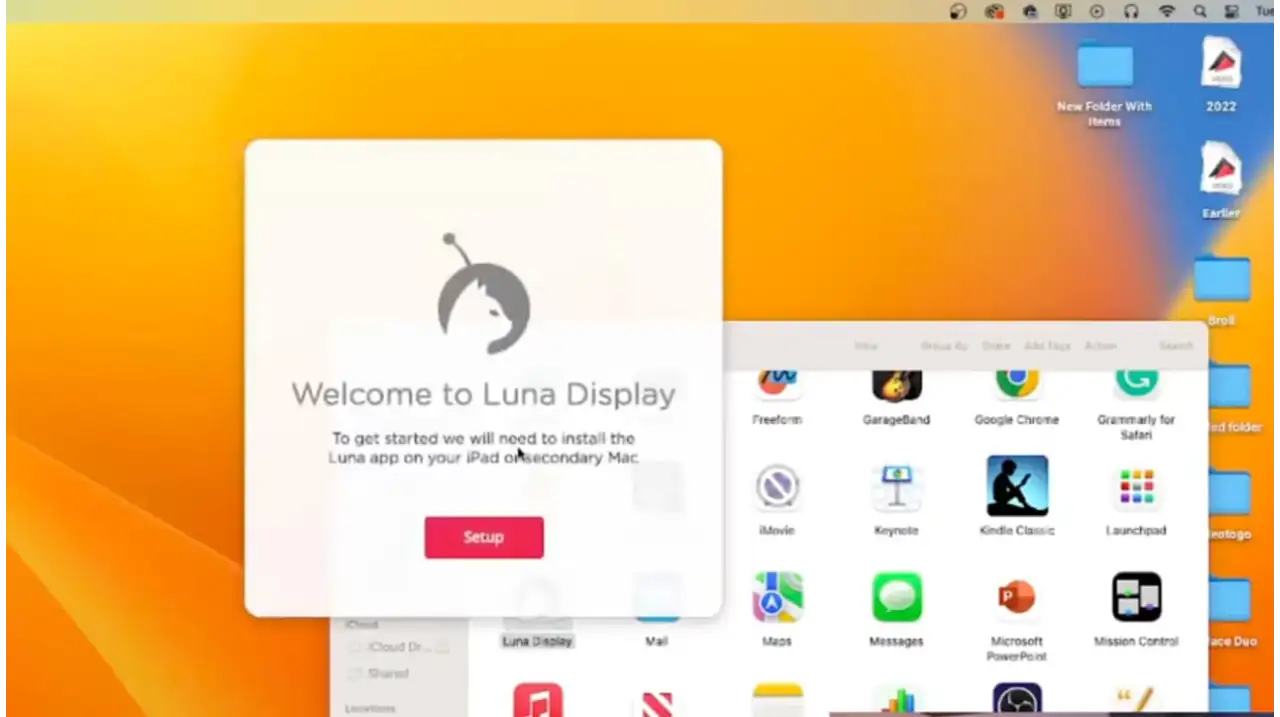
Why We Recommend Luna Display for Your Setup?
Luna Display is a tiny, powerful device that you can use to turn your iMac into a monitor with ease, even in 2025. It is developed by Astropad, known for professional-grade creative tools used by illustrators and designers. It’s designed in a way to deliver a smooth, high-resolution user experience.
Here’s why we recommend it for your setup:
- It’s a plug-and-play solution that works flawlessly with both Mac and PC.
- You can have crisp 5K resolution and smooth performance over USB-C, Wi-Fi, or even Ethernet.
- What makes it stand out is its broad compatibility, supporting iMacs as far back as 2011.
- While it’s a paid tool, the reliability and visual quality you get far outweigh the limitations of outdated options.
- Ideal for anyone wanting a modern, plug-and-play display experience without tech headaches.
Beyond iMacs, Luna Display allows you to use iPads and MacBooks as external monitors, too. It’s a versatile option for creatives, developers, and multitaskers who want more screen real estate without buying another display.
For system requirements and compatibility, visit the official Luna setup guide

What Makes the Target Display Mode Outdated to Use in 2025?
Back in the early 2010s, this mode was Apple’s way of letting users repurpose certain iMacs as external monitors. While useful then, it’s now largely obsolete. It only works with mid-2014 or older models, relies on the outdated Thunderbolt 2 port, and caps out at a resolution of 2560×1440. For modern Macs and PCs, it simply doesn’t cut it. If you’re aiming for a smooth, high-res display setup today, there are much better solutions available.
You can read Apple’s official details about Target Display Mode for technical limitations.

Which Devices and Cables Are Required to Use iMac as Monitor?
You’ll need a few key pieces in the first place to use your iMac as a monitor in 2025. Take a look at them:
- First, make sure your iMac is from 2011 or newer and running macOS 10.13 or later (10.15+ recommended for USB connections).
- You also need a primary computer for this purpose; it doesn’t matter whether it’s a Mac or a Windows PC.
- A Luna Display plus the right cable, depending on your model.
If you’re not sure which port your Mac supports, refer to Apple’s Thunderbolt and USB-C guide.
Guide to Set Up Luna Display
It’s easy to set up your iMac as a second screen with Luna Display. Just plug the Luna dongle into your primary computer’s USB-C port (ensure it supports DisplayPort or Thunderbolt).
After it connects, install the Luna Primary app on your main device. Now, it’s time to insert the Secondary app on your iMac. The apps sync automatically. After setup, your iMac works as a mirrored or extended monitor. Here, take a thorough look at the given table for the detailed step-by-step guide:
Steps | What to Do | Details And Tips |
1. Plug in the Luna Display | Connect your Luna dongle to your primary device | Try using a USB-C port that supports Thunderbolt or DisplayPort. Because on a Mac Mini or Mac Studio, only the back USB-C ports support displays. On PCs, look for the port with a Thunderbolt or DP icon. This dongle signals the Luna Display system to initiate. This method supports a variety of setups, including older iMacs and Mac desktop monitors repurposed as second displays. |
2. Connect the iMac with the Right Cable | Choose a cable based on your iMac’s ports and connect it |
Wired connections are more stable than Wi-Fi, especially when using a 5K iMac as a display. |
3. Install Luna Display Apps | Download Luna apps on both devices |
The apps are lightweight, sync automatically, and are available from the Luna Display website. |
4. Activate & Optimise iMac Display | Launch the apps and enjoy your new display | Luna should automatically detect both devices and configure the iMac as an extended or mirrored display. Enable Retina Resolution in settings for a sharper, high-definition view. You’ve now successfully turned your iMac as external monitor! |
The apps are lightweight, sync automatically, and are available from the Luna Display website.
iMac Monitor Not Working? Try These Quick Fixes
Do you face problems while setting up your iMac as a second screen? Don’t worry, it’s usually easier to fix such hiccups.
If your USB port isn’t being detected, try switching to another compatible port or restarting your device.
Ethernet not syncing? Check both ends of the cable and ensure you’re on the same network.
If the Luna app won’t launch or connect, a quick reinstall or update usually solves it. You can also reset the Luna software or reconnect devices to refresh the setup.
Still stuck and wondering how to turn on an iMac desktop display mode? Just press the power button as normal; once powered on, Luna will automatically recognize it when the Secondary app launches. Luna’s support can help.
Make the Most of Your Mac Setup—Starting Today!
The use of an iMac as display in 2025 is a smart, budget-friendly way to upgrade your setup. With Luna Display, it’s a simple and smooth, future-proof solution offering crystal clear visuals and broad compatibility. So, don’t waste your time and turn your iMac into a powerful second monitor today and level up your Apple setup! Want to compare USB-C cables for display or charging performance? Try this Wirecutter USB-C cable guide for top-rated choices.
Frequently Asked Questions
1. Can I use my iMac as a monitor for a Windows PC in 2025?
Yes, you can! Tools like Luna Display support both Mac and Windows PCs. Just make sure your iMac is compatible (generally 2011 or newer) and install the Luna Secondary app on your iMac.
2. Is Luna Display worth it for using an iMac as a monitor?
Absolutely. While it’s a paid device, Luna Display offers 5K resolution, broad compatibility, and works via USB-C, Ethernet, or Wi-Fi. It’s plug-and-play and more reliable than outdated options like Target Display Mode.
3. Why doesn’t Target Display Mode work on my iMac anymore?
Apple discontinued Target Display Mode after mid-2014 iMacs. It only works with older macOS versions (High Sierra or earlier) and outdated Thunderbolt 2 or Mini DisplayPort connections. Most 2025 devices aren’t compatible anymore.
4. What’s the cheapest way to use an iMac as a second screen?
If your budget is tight, try Duet Display, it’s a low-cost app that works with iPads, Macs, and even PCs. Keep in mind it doesn’t support 5K resolution like Luna does.
5. Can I wirelessly connect my iMac as a monitor?
Yes. With Luna Display and a stable Wi-Fi or Ethernet connection, you can use your iMac wirelessly as a second monitor. Just note that wired connections offer smoother performance, especially for high-res or graphic-heavy use.


